What you see at the edge of a sheet: showing links to twenty neighbouring sheets
Split a diagram into sheets and the links break off at the edges. How PlyLoom 0.9 shows the neighbours: a frame, plates, “More” and a layout that does not jump.
When a language model refines a map, it usually returns the whole project again, and there is no way to see what exactly it rewrote. In PlyLoom 0.10 edits arrive as a list: each one is shown on its own, you accept the ones you want, leave the rest aside, and a single Undo takes everything back.
Until now, working with an AI on a finished map went like this: attach the project to the prompt, ask for changes, and get the whole project back. Opening that file replaces the map entirely. If the model lost a couple of nodes on the way, shortened a quotation or “fixed” an attribute nobody asked about, you would notice only by chance. On a large JSON this happens more often than one would like.
The problem is not the model but the shape of the answer. A full file is a snapshot, while what we need is the difference: what to add, what to change, what to remove. So PlyLoom 0.10 tells two things apart.
.plyloom file, a full snapshot of the project. You keep it, send it to colleagues, put it in a repository. A map made from scratch still arrives as a package.Edits from others never enter the project by themselves. They pass through one and the same review screen, whether they come from an AI or from a colleague’s file.
In Help → Working with AI, choose “Refine the open map” and “An AI chat” — the button copies the prompt together with the project — whole, or one sheet with its neighbours — and asks the model to return a list of edits only. The model cannot lose what it did not touch, and the answer is shorter.
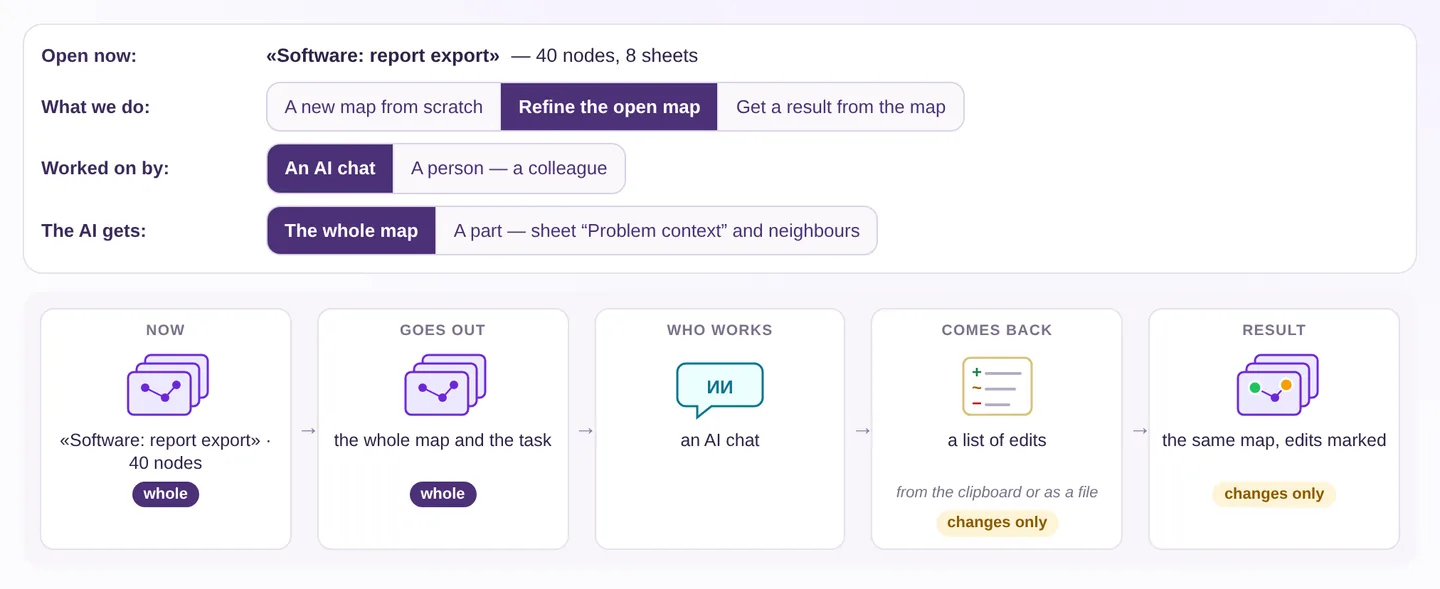
The chat’s answer is pasted as it is with Project → Paste an AI answer…: text around the JSON and ``` fences do no harm. If the model returned the whole project after all, PlyLoom compares it with the current one and shows the same list.
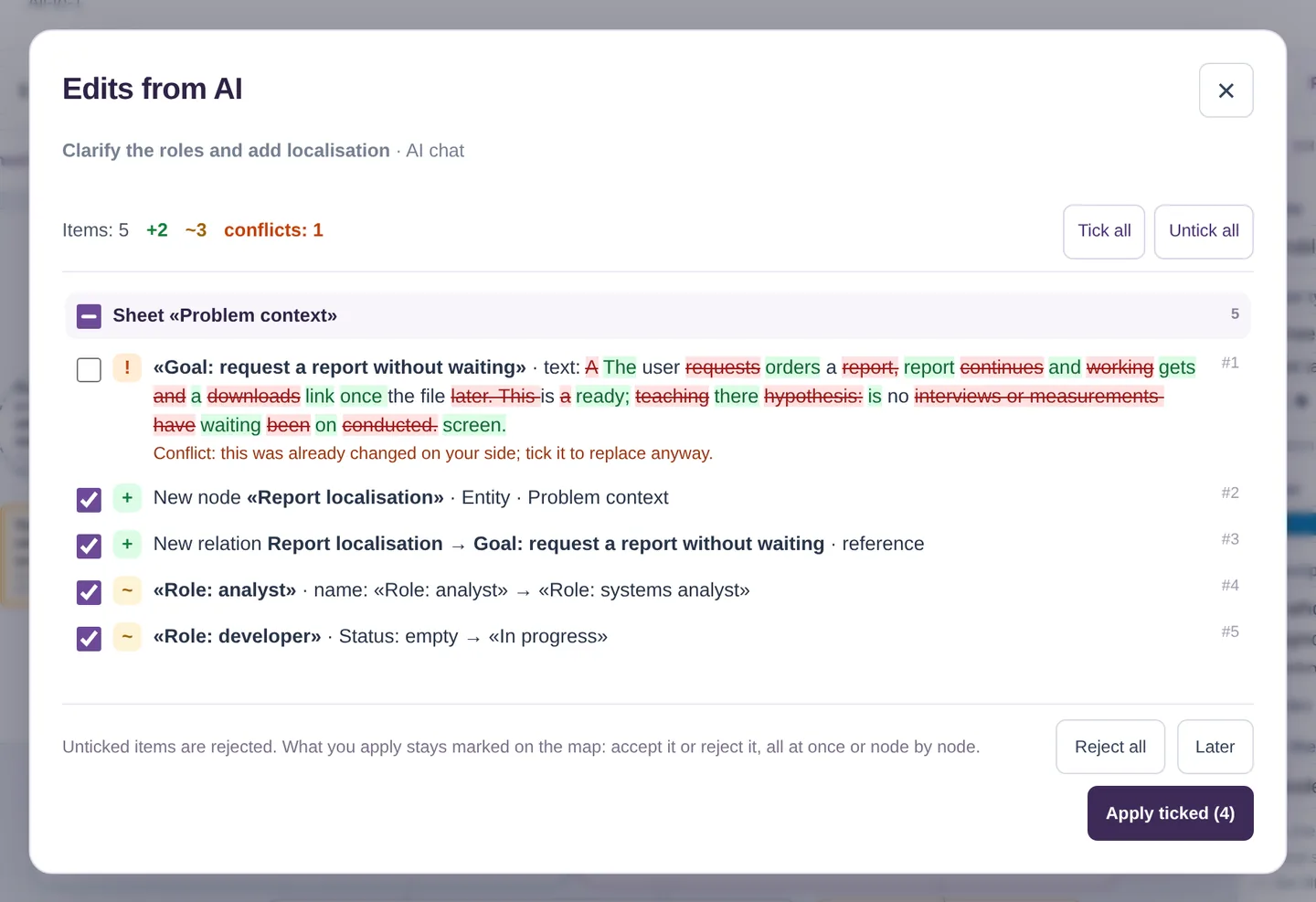
Each item is one edit with a clear meaning:
Whatever is ticked is applied as one step, and what is unticked is rejected. To decide later, press Later: the list waits in the bar at the bottom of the screen and opens again with the same ticks.
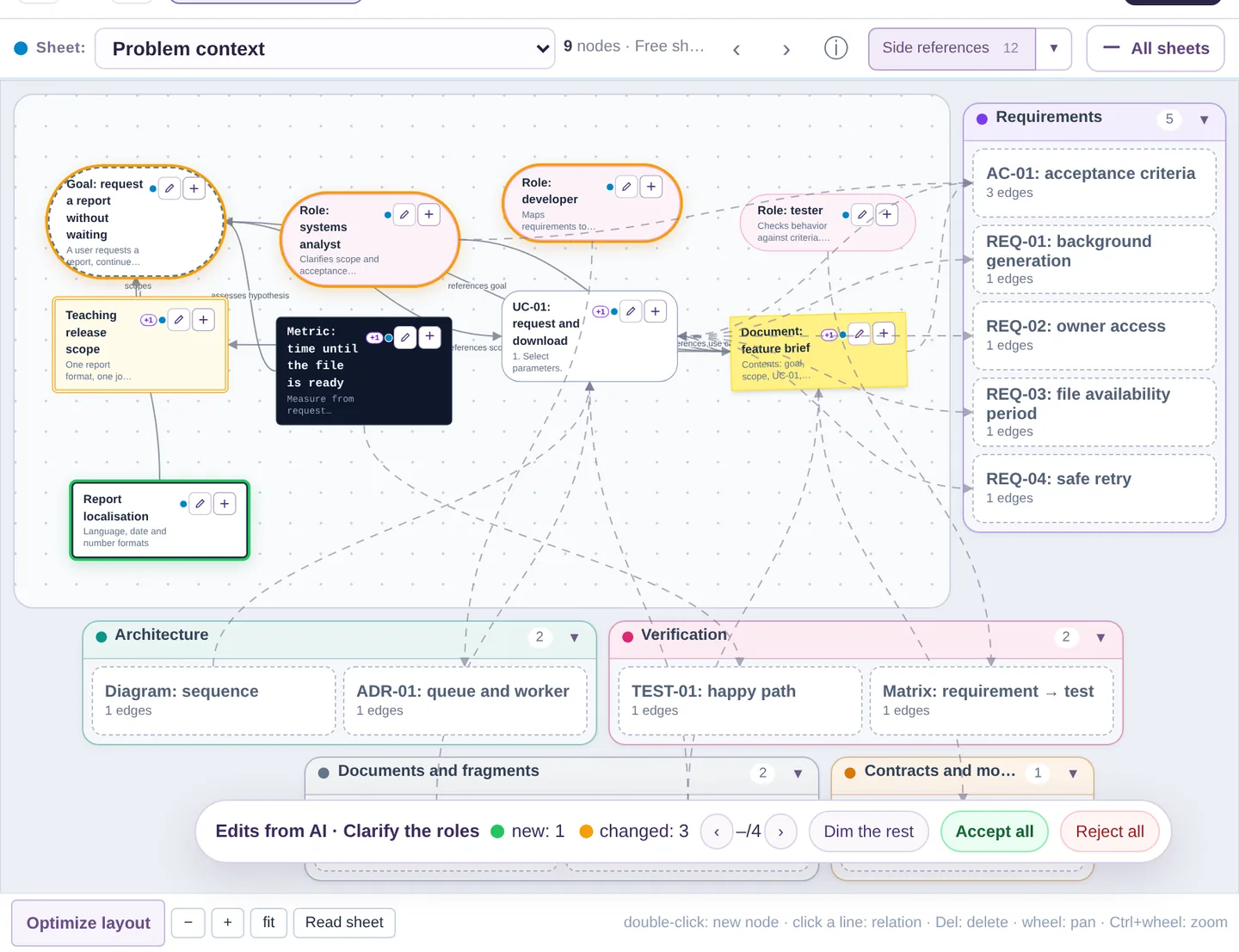
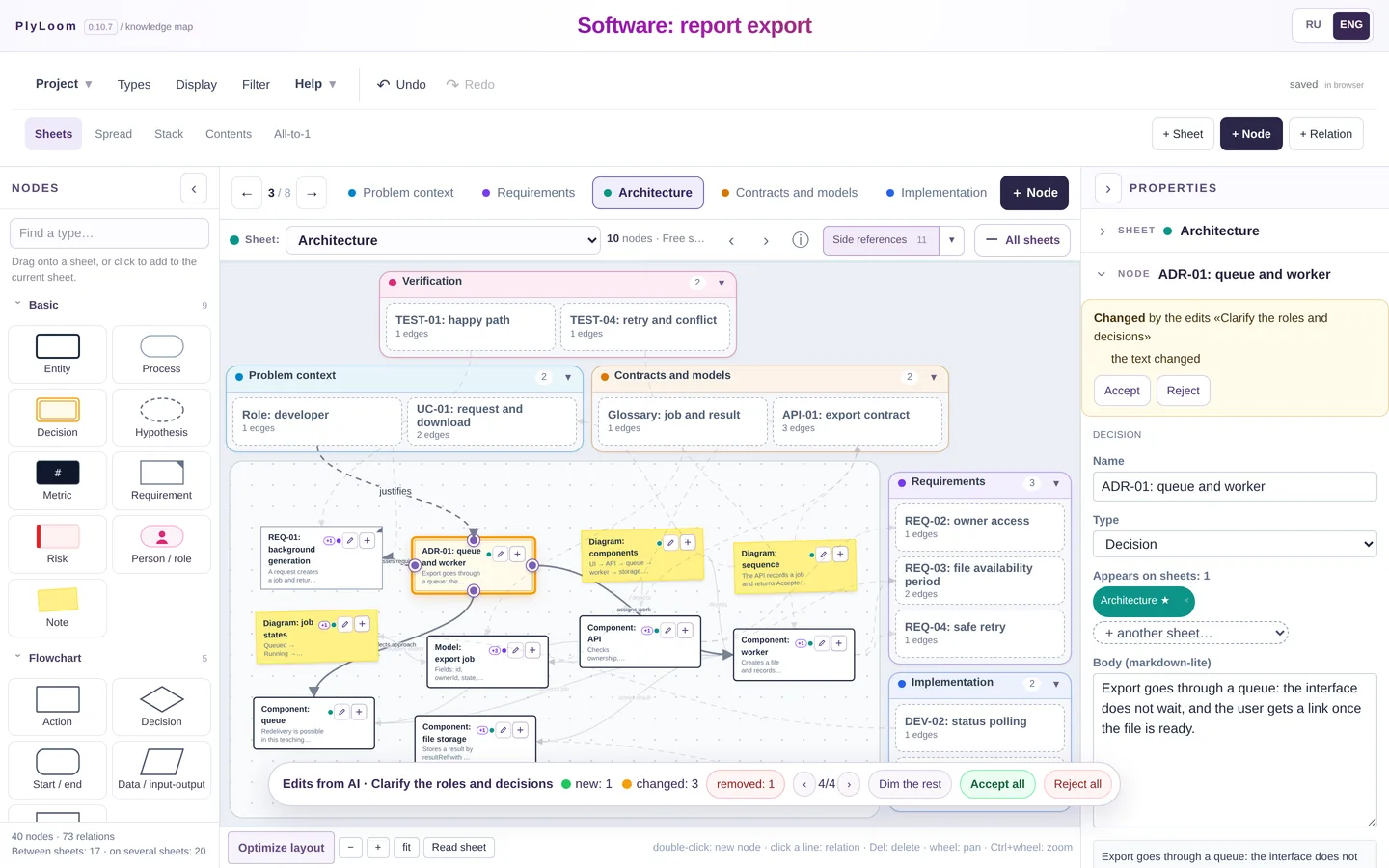
Applied edits are not final at once — they stay marked, like tracked changes in a text editor. New nodes are outlined in green and changed ones in amber. They may be on any sheet: the ‹ › arrows in the bottom bar visit them one by one. For a selected node the properties panel says what was done to it and offers Accept and Reject. For all of them at once there are Accept all and Reject all in the same bar; rejecting brings removed items back too and leaves your own edits made since untouched.
The same screen opens from Project → Compare with a file… and from the preview that opens a .plyloom, which now has a Compare with current button. The comparison goes by meaning, not by lines: nodes, texts, attributes, relations, sheets and dictionaries. Moved cards do not clutter the list; tick Bring card positions too when you need them.
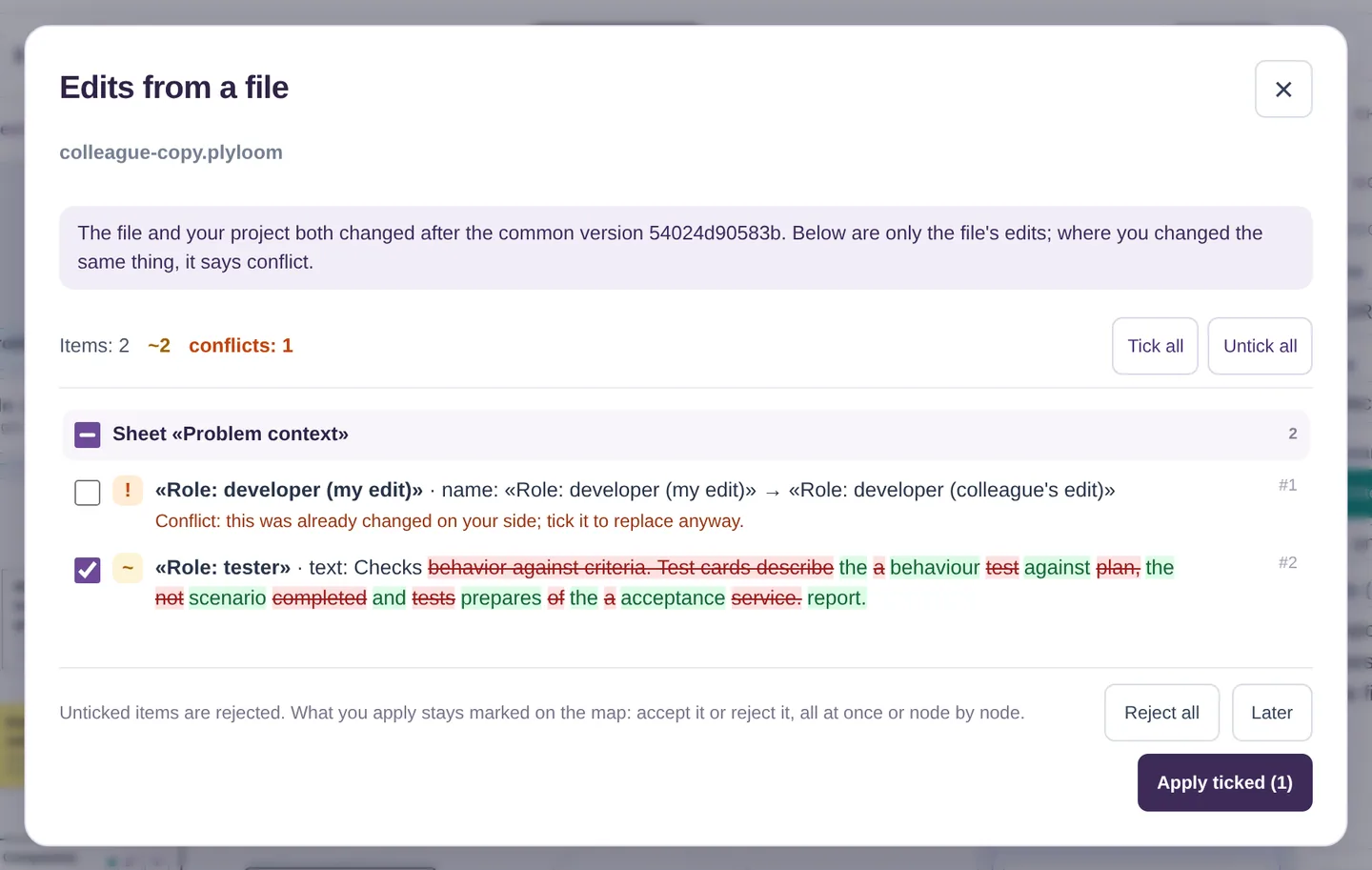
Models sometimes renumber IDs. A node with another ID but the same type and name counts as the same node, and a relation as the same relation by its ends and type. Without that, any renumbering would look like “delete everything and add it again”.
Every Download .plyloom writes the fingerprint of the version into the file — 12 characters computed from the content — together with the fingerprints of the versions it came from. Fingerprints only: earlier content never goes into the file, so a paragraph you deleted does not travel with the map to whoever receives it.
From the fingerprints PlyLoom tells what has arrived: a continuation of your version, an older copy, or a copy edited alongside yours. The last case needs the common version. Its content is kept only in your browser — the last eight versions you opened or downloaded. When it is there, only your colleague’s edits are listed, and whatever you changed too is marked as a conflict. When it is not, the differences mix both sides and removals start unticked, because they may be your new nodes.
Besides the usual tests, comparing was checked on random edits of the training maps: renames, texts, attributes, new and deleted nodes, relations, sheets, the order of tabs. For every set of edits, the list PlyLoom computes has to turn one map into the other and back with nothing left over, and in a merge conflicts may appear only where both sides touched the same thing. These checks found and closed a few subtle places — for example, keeping a node’s main sheet and the order of tabs.
The full list is on the What’s new page.
Screenshots are from version 0.10.0 on the training map “Software: report export”; the edits in them were made up for the illustration.
Split a diagram into sheets and the links break off at the edges. How PlyLoom 0.9 shows the neighbours: a frame, plates, “More” and a layout that does not jump.
A summary is easy to read and hard to check. A map of changes, linked to clause numbers in both versions, can be checked by eye.
Room is not the problem. Place and neighbourhood are. What astronomers did with the sky, and what it suggests for diagrams.
Tabs, spreadsheets and diagrams all break at the same point. An idea borrowed from technical documentation: reuse one component in many places.